
Login Process
The IotHub Web UI can be accessed via browser and inserting the URL of the IoTHub instance.
By providing the correct username and password, the user will be able to get access to the IoTHub and then stay logged in.
The Login Screen
After opening the IoTHub URL in a browser or falling back by a logout, the login screen appears.
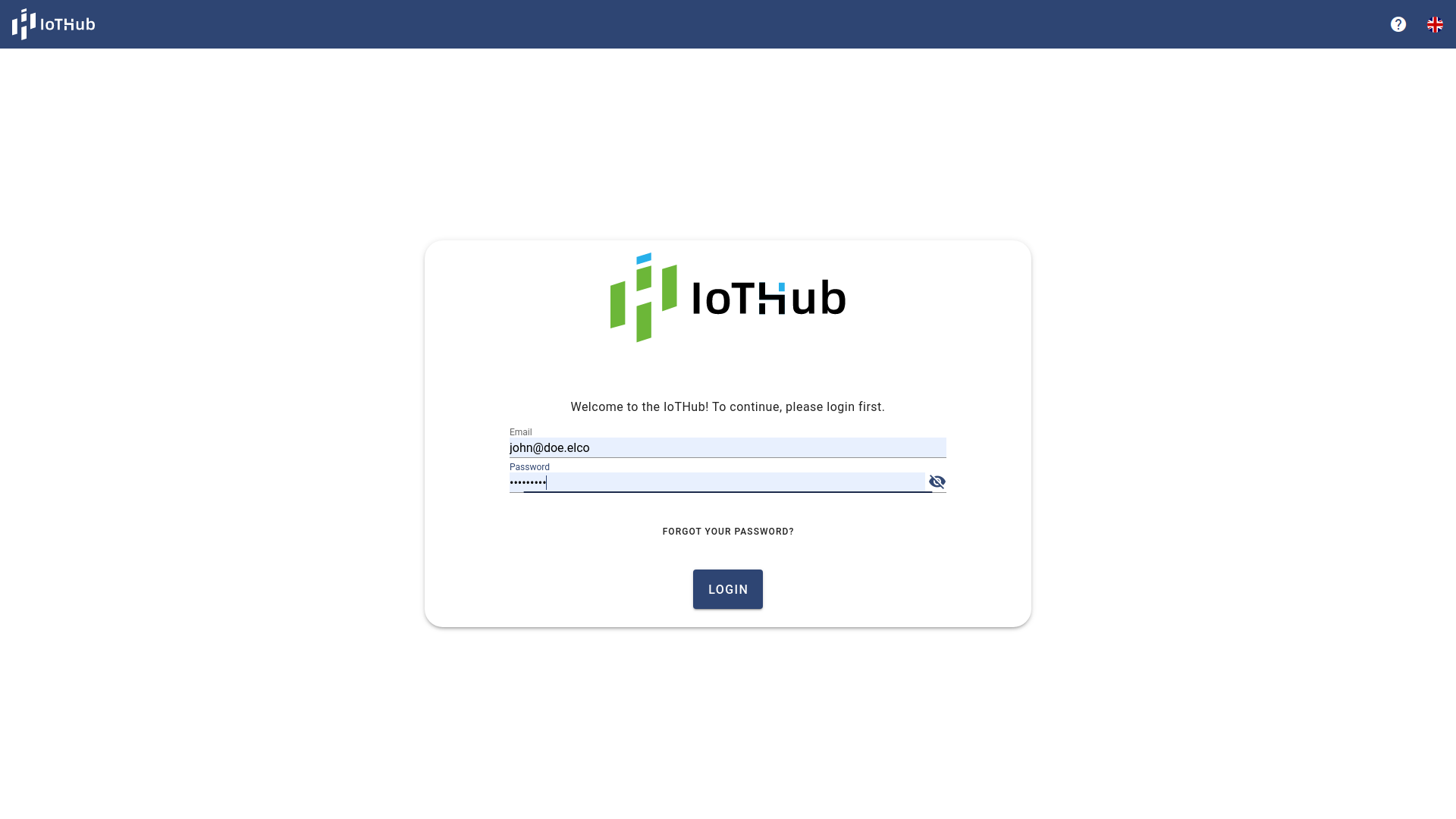
The screen is divided into two parts. The first is the colored navigation bar at top getting more information about it following this link: Navigation Bar.
The other part is the dialog to login. The dialog provides input fields for the username and the password. With a click to the icon the password can be shown as text or with another click on it the password can be hide again. If the user forgot its password, the user can contact its administrator to assign a new password to the user or it can click at the Forgot your password? link to reset its password. Further description can be found at Reset Password.